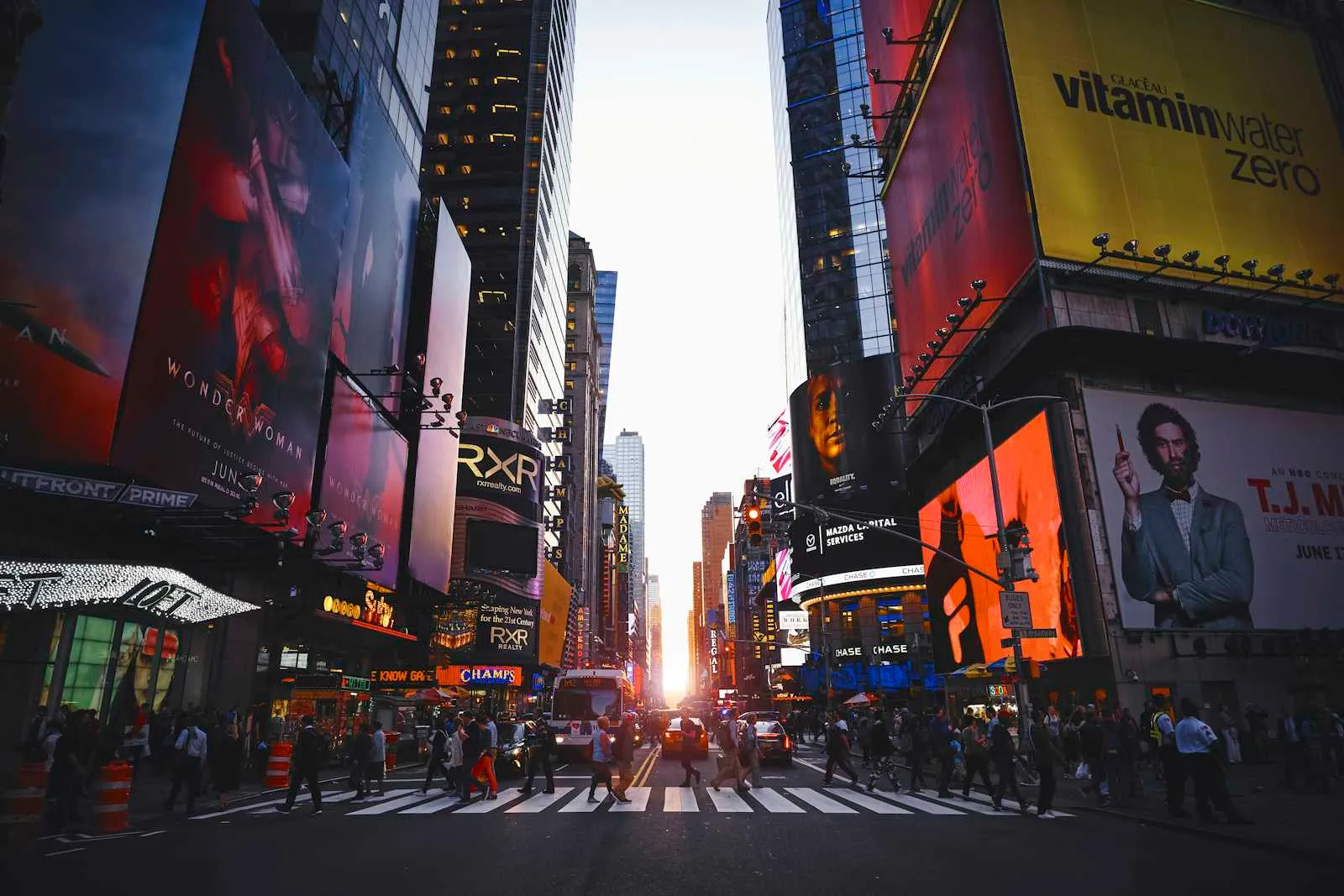
디지털 사이니지 중에는 글자가 흐르는 모습을 종종 볼 수 있습니다. 해당 디스플레이를 CSS로 작성해보았습니다.
MUI를 사용하여 작성하였습니다.
흘러갈 대상 컴포넌트를 작성합니다. 글자를 흐르게 할 예정이므로 Typography를 사용했습니다.
function FloatingText({ children }: { children: ReactNode }) {
  return (
    <Typography
      position={"absolute"}
      left={"100%"}
      variant={"h1"}
      fontWeight={900}
      whiteSpace={"nowrap"}
    >
      {children}
    </Typography>
  );
}
화면 밖에서 흘러들어올 예정이므로 position: absolute와 left: 100%을 적용했습니다.
추가로 글자 크기를 조정하고, 줄바꿈이 얼아나지 않도록 white-space: nowrap을 추가했습니다.
텍스트가 지난 간 후 다음 텍스트가 흐르는 중에 끊기지 않도록 컴포넌트를 복제합니다.
function FloatingText({ children }: { children: ReactNode }) {
  return (
    <Box position={"relative"} height={"10vh"} display={"flex"} alignItems={"center"}>
      <Typography
        position={"absolute"}
        left={"100%"}
        variant={"h1"}
        fontWeight={900}
        whiteSpace={"nowrap"}
      >
        {children}
      </Typography>
      <Typography
        position={"absolute"}
        left={"100%"}
        variant={"h1"}
        fontWeight={900}
        whiteSpace={"nowrap"}
      >
        {children}
      </Typography>
    </Box>
  );
}Box를 추가해서 두 컴포넌트를 감싸주고, absolute의 기준이 되도록 position: relative로 설정합니다.
적당한 높이를 설정하고, 세로의 중앙에 오도록 display: flex와 align-items: center를 추가합니다.
그리고 keyframes를 사용해 애니메이션을 추가합니다.
const carousel = keyframes`
  0% {
    left: 100%;
  }
  100% {
    left: -100%;
  }
`;
처음 시작은 left: 100%이며, 화면 밖까지 흘러가야하므로 끝은 left: -100%입니다.
애니메이션을 적용하고, 가로 스크롤이 생기지 않도록 한번 더 감싸줍니다.
function FloatingText({ children }: { children: ReactNode }) {
  return (
    <Box overflow={"hidden"}>
      <Box position={"relative"} height={"10vh"} display={"flex"} alignItems={"center"}>
        <Typography
          position={"absolute"}
          left={"100%"}
          variant={"h1"}
          fontWeight={900}
          whiteSpace={"nowrap"}
          sx={{ animation: `8s linear infinite ${carousel}` }}
        >
          {children}
        </Typography>
        <Typography
          position={"absolute"}
          left={"100%"}
          variant={"h1"}
          fontWeight={900}
          whiteSpace={"nowrap"}
          sx={{ animation: `8s linear infinite ${carousel}`, animationDelay: "4s" }}
        >
          {children}
        </Typography>
      </Box>
    </Box>
  );
}
두 컴포넌트에는 동일한 애니메이션을 적용하고, 두번째 컴포넌트에는 애니메이션 시간의 절반만큼 딜레이를 줍니다.
컴포넌트가 화면 밖에 있으므로 스크롤이 생기는데, 이를 방지하기 위해 overflow: hidden을 추가합니다.
완성된 컴포넌트입니다.
import { type ReactNode } from "react";
import { Box, Typography } from "@mui/material";
import { keyframes } from "@mui/material/styles";

const carousel = keyframes`
  0% {
    left: 100%;
  }
  100% {
    left: -100%;
  }
`;

function FloatingText({ children }: { children: ReactNode }) {
  return (
    <Box overflow={"hidden"}>
      <Box position={"relative"} height={"10vh"} display={"flex"} alignItems={"center"}>
        <Typography
          position={"absolute"}
          left={"100%"}
          variant={"h1"}
          fontWeight={900}
          whiteSpace={"nowrap"}
          sx={{ animation: `8s linear infinite ${carousel}` }}
        >
          {children}
        </Typography>
        <Typography
          position={"absolute"}
          left={"100%"}
          variant={"h1"}
          fontWeight={900}
          whiteSpace={"nowrap"}
          sx={{ animation: `8s linear infinite ${carousel}`, animationDelay: "4s" }}
        >
          {children}
        </Typography>
      </Box>
    </Box>
  );
}

export default function App() {
  return <FloatingText>Floating Text</FloatingText>;
}